MemoryBrainTraining

iPhone / iPad · iOS 15.1+

Remember the shapes.Then pick them out.

Memorize the color and shape of the first shapes, then tap the same ones on the answer screen. Five correct answers clear the level, five mistakes end it. Pick your level from a list.

Scan with your iPhone

MemoryBrainTraining

When it helps

What it does

  1. 01

    Memorize colors and shapes

    A few shapes appear when the game starts. Once you have them memorized, press the button to go to the answer screen.

  2. 02

    Tap the same shapes

    Among the scattered shapes, tap the ones with the same color and shape. Correct shapes disappear.

  3. 03

    Five clears, five misses

    Clear five questions to finish the level. Five mistakes end the game.

  4. 04

    Levels from a list

    On iPhone, Levels 1 to 22 are listed. Clearing one opens the next, with more shapes to remember or to choose from.

  5. 05

    Dark mode

    Switch to a black background in Settings.

In detail

Look at the colors and shapes first
01

Look at the colors and shapes first

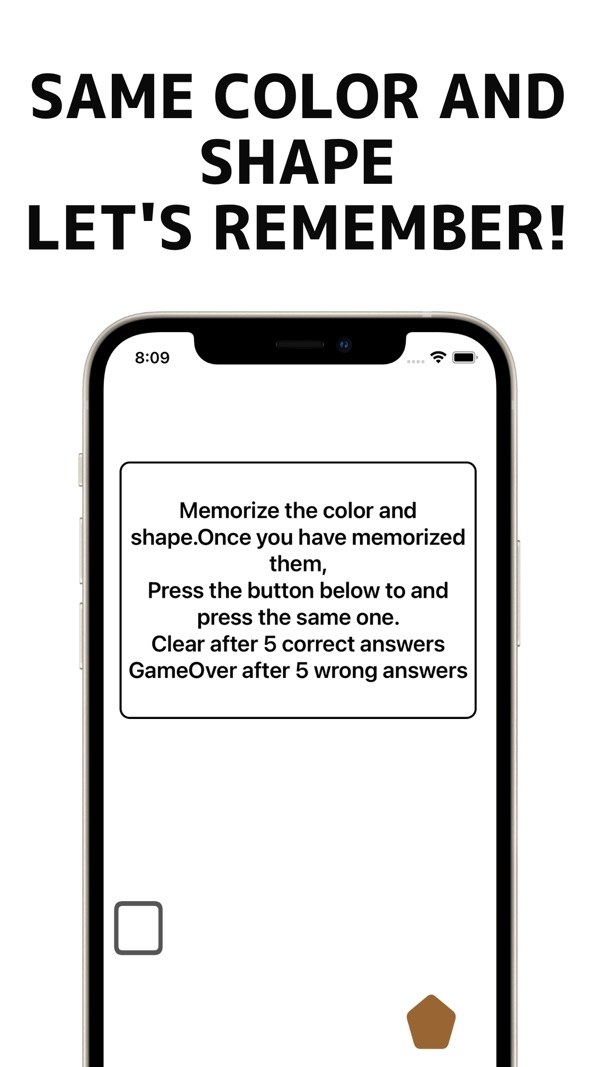
When a game starts, a few shapes are shown on screen. Once you have memorized their colors and shapes, press the button to go to the answer screen. A box on the screen explains how to play.

  • Each shape is a color and shape pair
  • Instructions appear on screen
  • Press the button to go to the answers
Tap only the shapes you remember
02

Tap only the shapes you remember

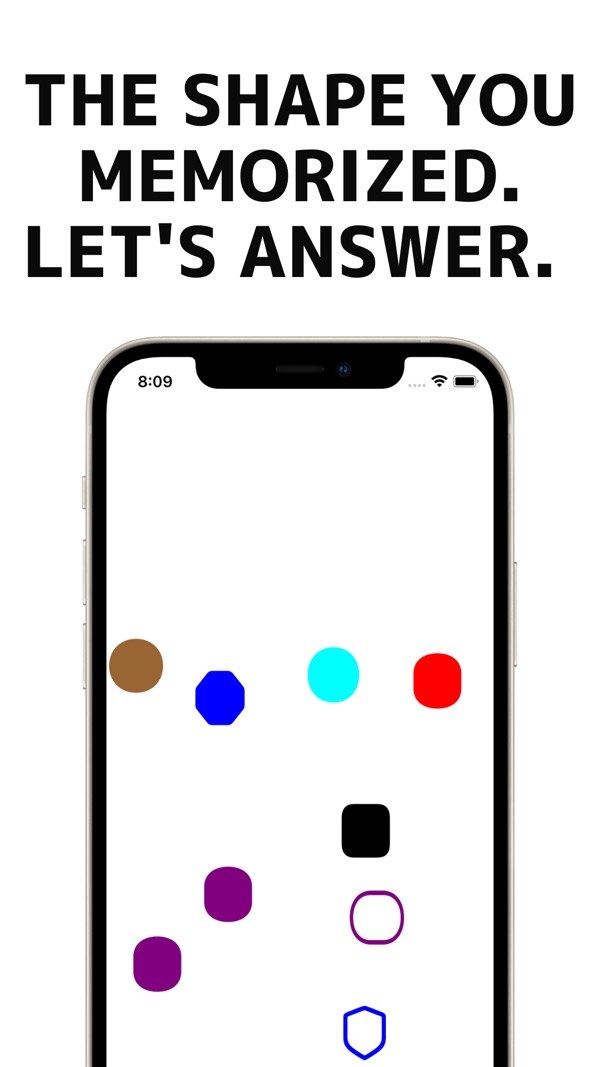
The answer screen scatters shapes of many colors and forms. Tap the ones that match the color and shape you memorized. A correct tap makes that shape disappear.

  • Correct shapes disappear
  • Correct and wrong taps play different sounds
  • Find them all to move to the next question
Pick a level from the list
03

Pick a level from the list

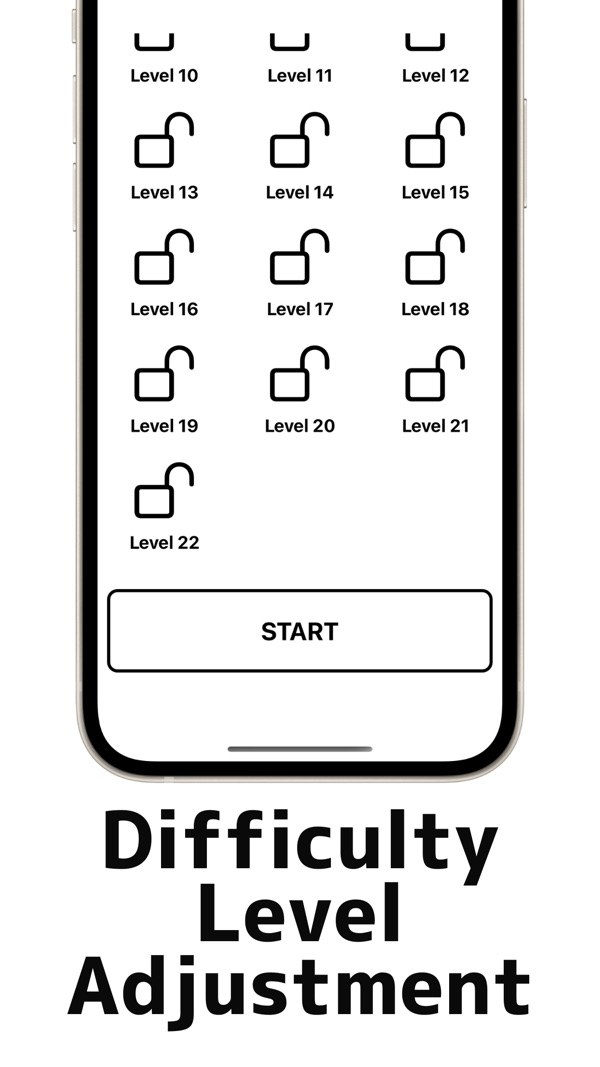
The start screen lists levels from Level 1. On iPhone the list goes up to Level 22. Clearing a level unlocks the next one, and locked levels cannot be chosen.

  • A lock icon shows what is open
  • Levels 1 to 9: as many shapes to memorize as the level number
  • From level 10, the answer screen grows from 10 to 20 shapes
04

Five clears to finish, five misses to end

Clear five questions and a clear screen appears. If your misses reach five, the game over screen appears. From either screen, the back button returns you to the start screen.

  • A sound plays on clear
  • Up to five misses
  • Clearing opens the next level
05

Dark mode and settings

Settings has a dark mode switch, a button to write a review, and a button to share the app.

  • Dark mode ON / OFF
  • Opens the App Store review page
  • Share the App Store link

How it works

  1. 1
    Choose a level

    Choose a level

    Tap the level you want in the list on the start screen. Locked levels cannot be chosen. Then press START.

  2. 2
    Memorize the colors and shapes

    Memorize the colors and shapes

    A few shapes appear on screen. Memorize their colors and shapes. The on-screen note says to press the button below once you have memorized them, then press the same ones.

  3. 3
    Tap the same color and shape

    Tap the same color and shape

    Pressing the button opens the answer screen. Tap every shape that matches what you memorized. Correct shapes disappear, and a wrong tap adds one miss.

  4. 4

    Until five clears or five misses

    Finding them all moves you to the next question, and five clears finish the level. Five misses end the game, and the back button returns you to the start screen.

Screens

Memorize the color and shape

FAQ

Does it cost anything to play?

The App Store price is free. The app shows ads.

How do I play?

Memorize the colors and shapes shown first. Then, on the answer screen, select the shapes that match the same colors and shapes.

Can I adjust the difficulty?

Yes. You can choose a level from the list on the start screen. The number of shapes to memorize and the number on the answer screen vary by level. Clearing a level opens the next one.

When does a game end?

You clear it after five questions are cleared, and the game is over after five wrong answers.

Is there sound?

Sound effects play for correct and wrong taps and when you clear. The app has no setting to turn sound off.

Where do ads appear?

Banner ads appear on the start, game and result screens. They come from Google AdMob.

What devices and iOS versions are supported?

iPhone and iPad running iOS 15.1 or later.

Which languages does it support?

The instructions and on-screen text are available in Japanese and English.

See how many you can remember.

Download on the App Store
MemoryBrainTrainingGet